 Sidekick
Getting started with Sidekick.
Set up your workspace or start the development environment.
For users
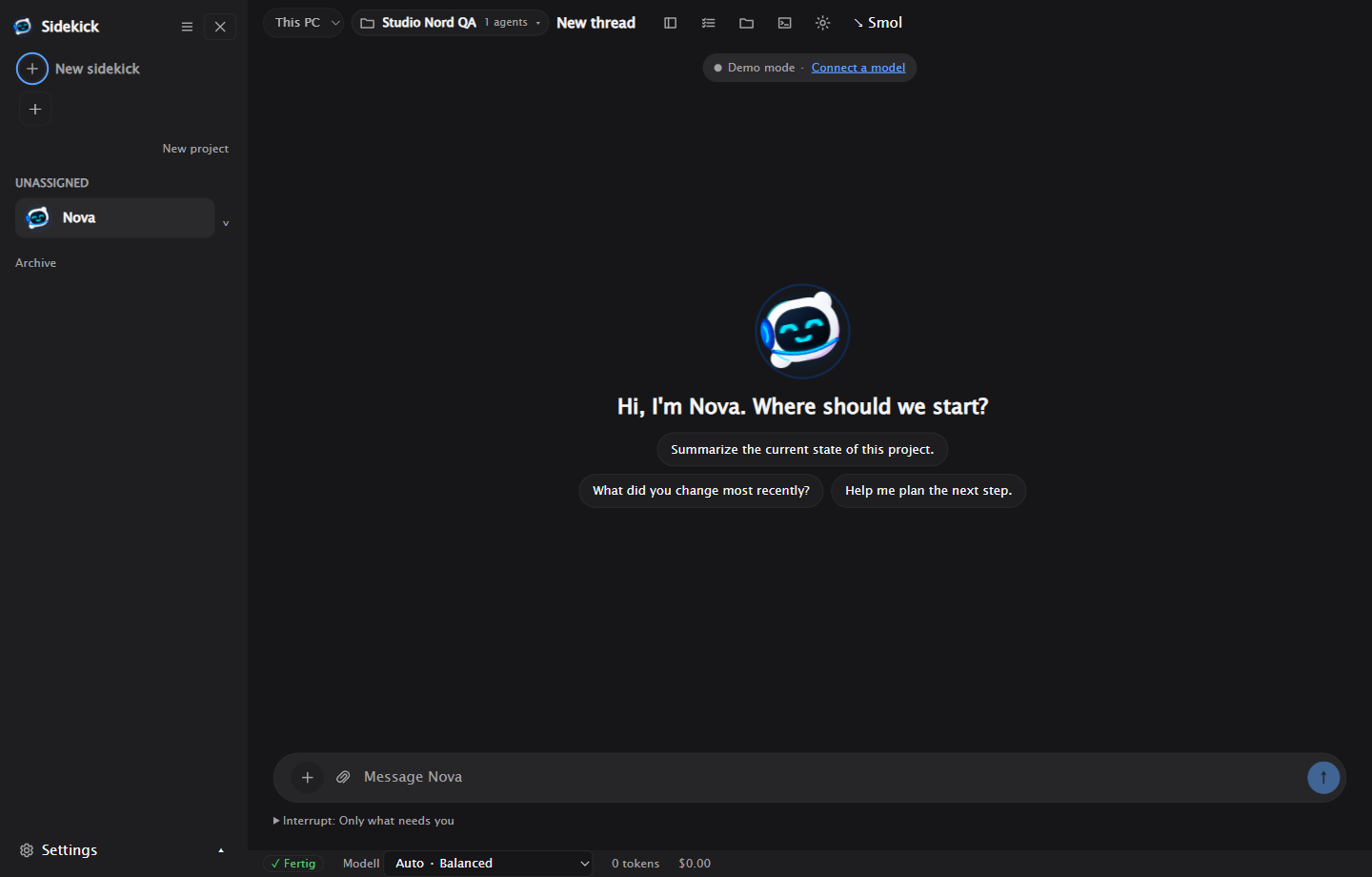
- Launch the desktop app. Open the Windows beta installer provided for you. When you first start, Sidekick will guide you through the setup.
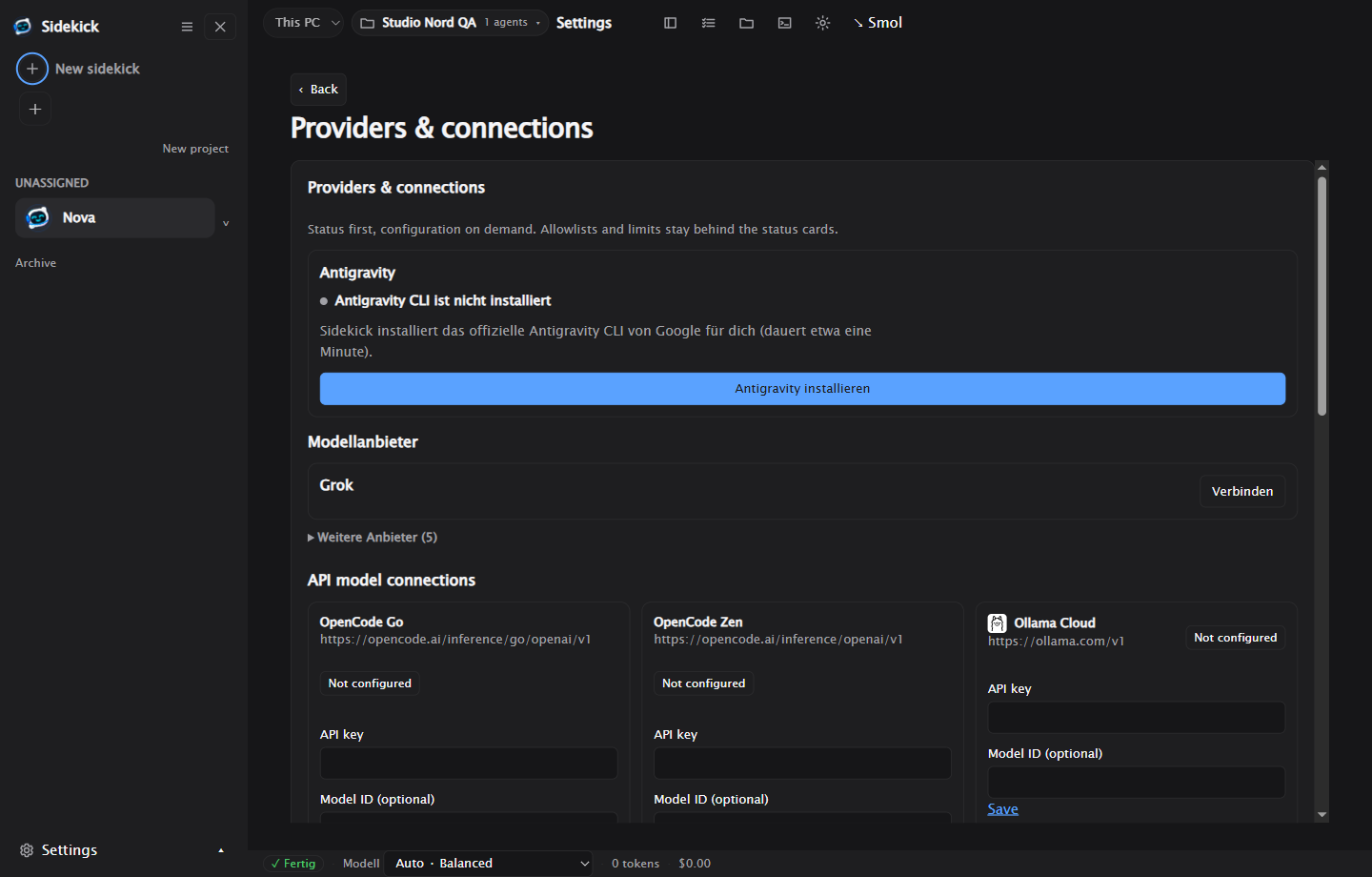
- Connect a model provider. During setup, choose a provider and connect using the sign-in method shown. Then select an available model and send a short test message.
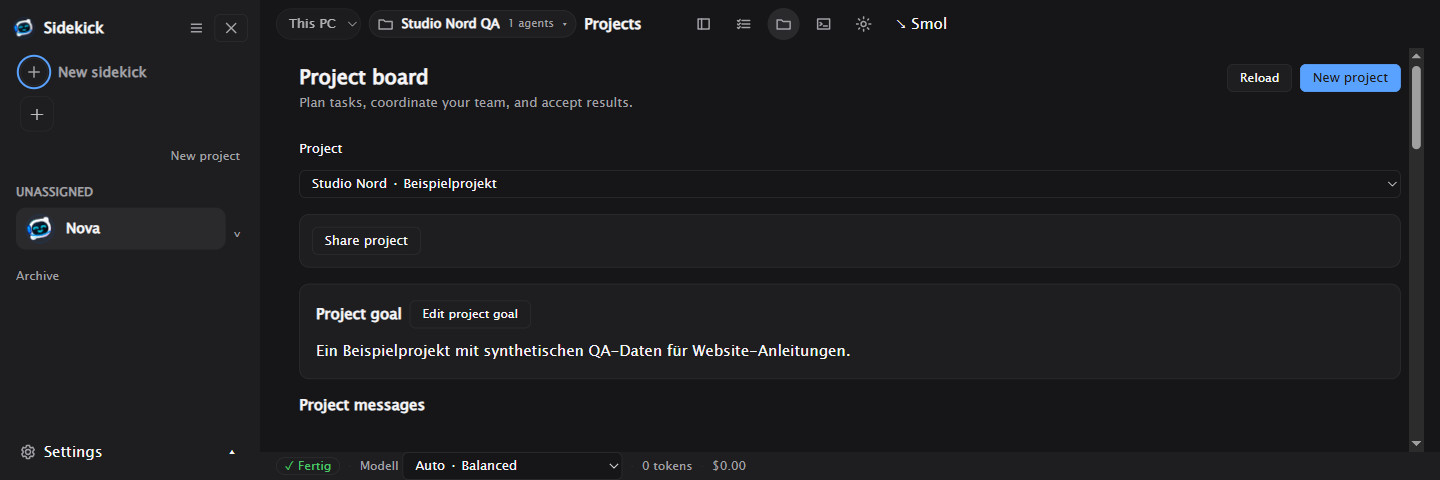
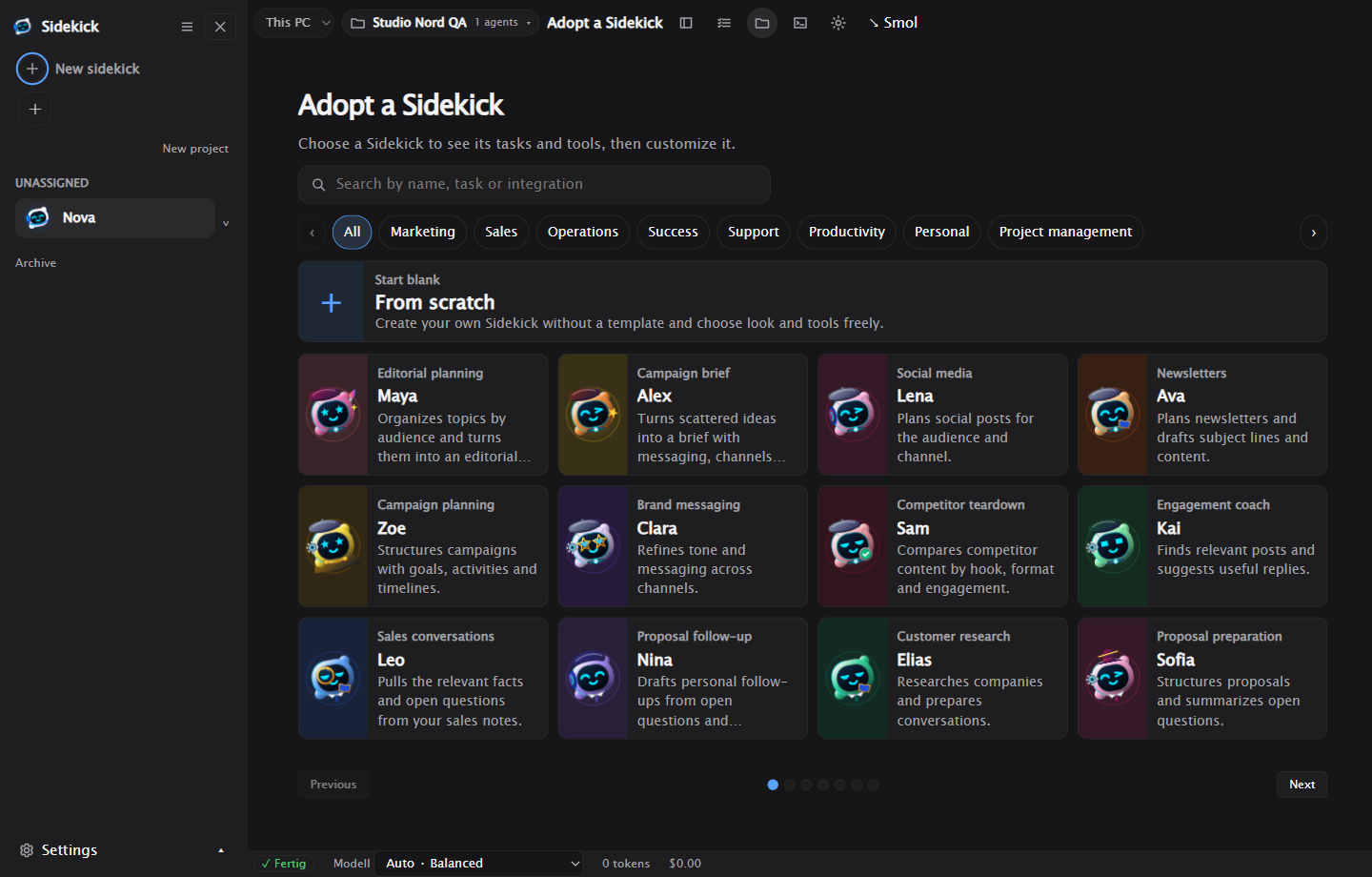
- Create a project and team. Create a project group for your task. Create your own Sidekick or take on a role template and add it to the group.
- Give your Sidekick a first task. Open the project chat, describe your goal and desired outcome, and ask your Sidekick to delegate part of the work to the team if needed.
- Review approval requests. Before approving a tool call, check what action it will take.
The Windows desktop is in beta. A public installer is currently not available here.
Connect apps and tools
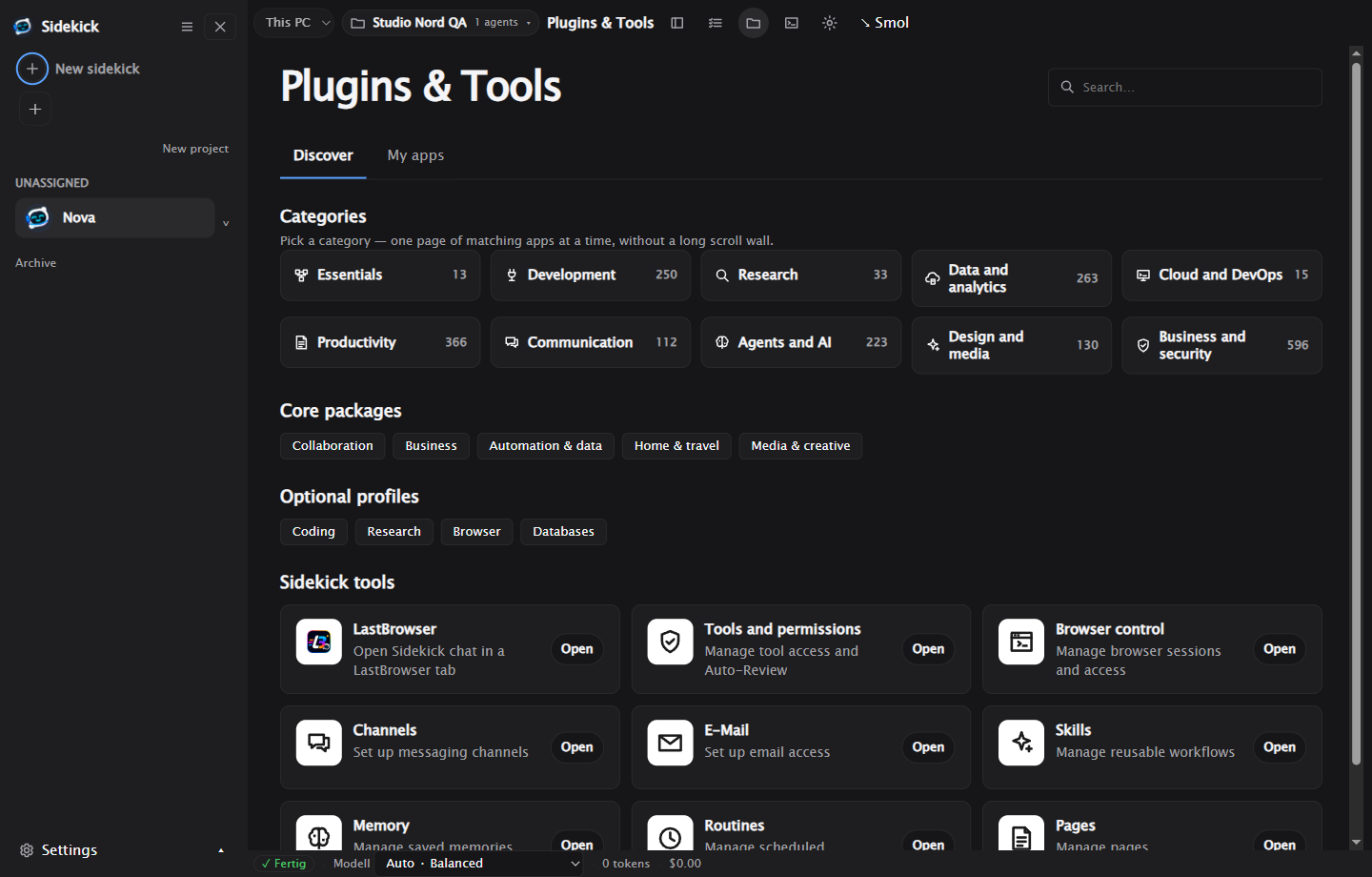
Under Plugins & Tools In the desktop app, you can find apps, tools, and their setup options.
- Select an entry. Search for the service you need and open its details.
- Set up a connection. Follow the setup steps shown. Some services connect directly; others use Composio or your own MCP server.
- Connect your account. If prompted, sign in with the provider and review the requested permissions.
- Use in chat. Give your Sidekick a suitable task and review any approval requests.
A catalog listing does not mean the service is connected. Availability and features depend on the service, setup, and your approval settings.
Explore plugins & tools →A good first project
Start with a clear goal and a result you can review. For example: “Create a campaign concept with a target audience, three ideas, and open questions.”
- Provide context. Describe the target group, general conditions and available material.
- Choose team. Add a suitable Role template and customize it.
- Review the result. Review suggestions and requested actions, then give feedback on the next step.
For developers
You need Git, Node.js 22.16 or later in the 22.x series, pnpm 9.12.0, and access to the private Sidekick repository.
git clone https://github.com/Loggableim/sidekick.git
cd sidekick
corepack enable
pnpm install --frozen-lockfile
pnpm typecheck
Run the backend and renderer locally
Start the backend in one terminal and the renderer in another.
pnpm --filter @sidekick/backend startpnpm --filter @sidekick/client dev --host 127.0.0.1 --port 5199For a full Windows desktop build including installer:
pnpm build
pnpm --filter @sidekick/client run dist:winReal captures from an isolated demo workspace. Depending on the app version, some interface text may still appear in English or German.
Chat and your first task
Project board
Adopt a Sidekick
Plugins and tools
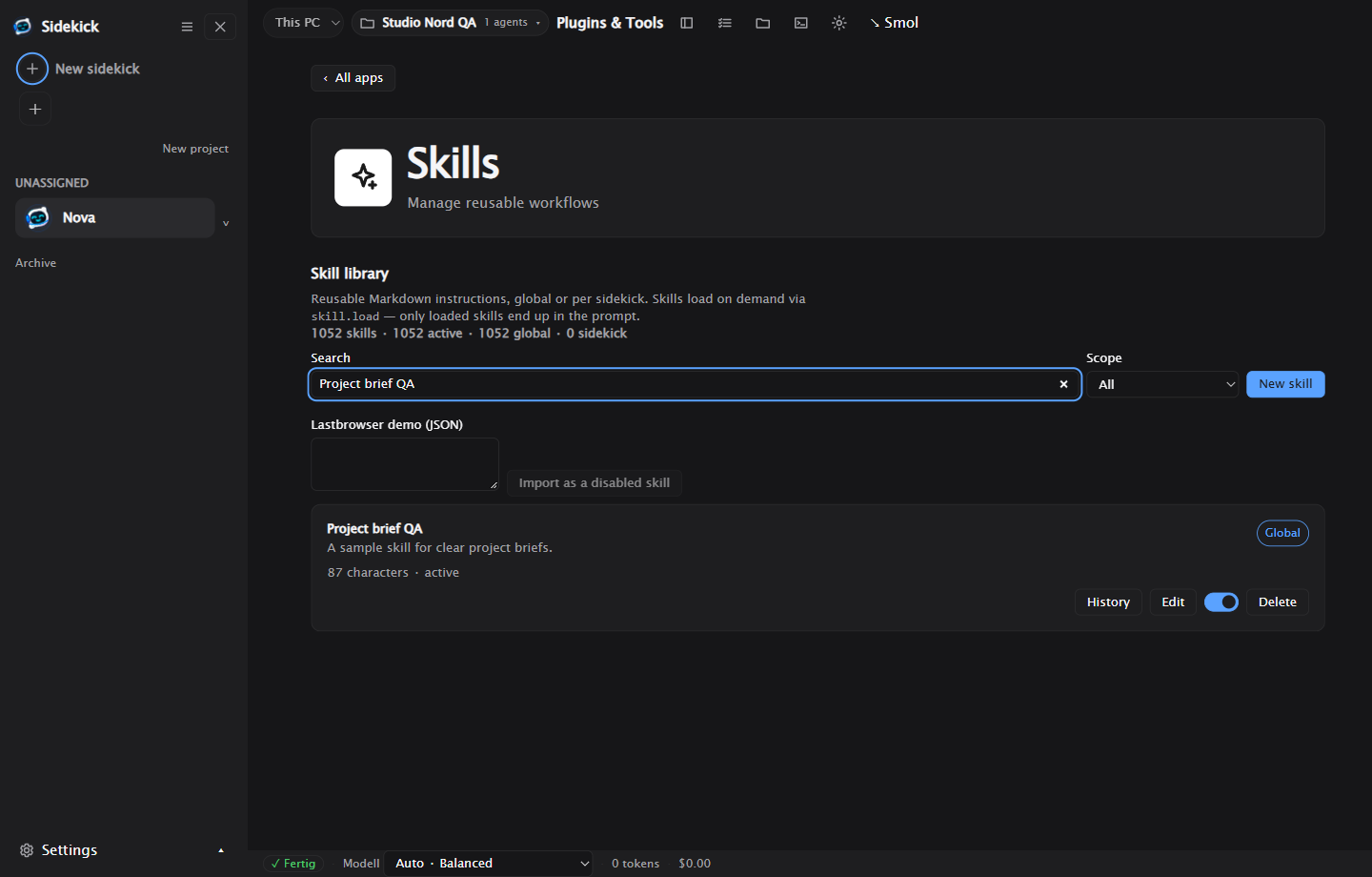
Manage skills
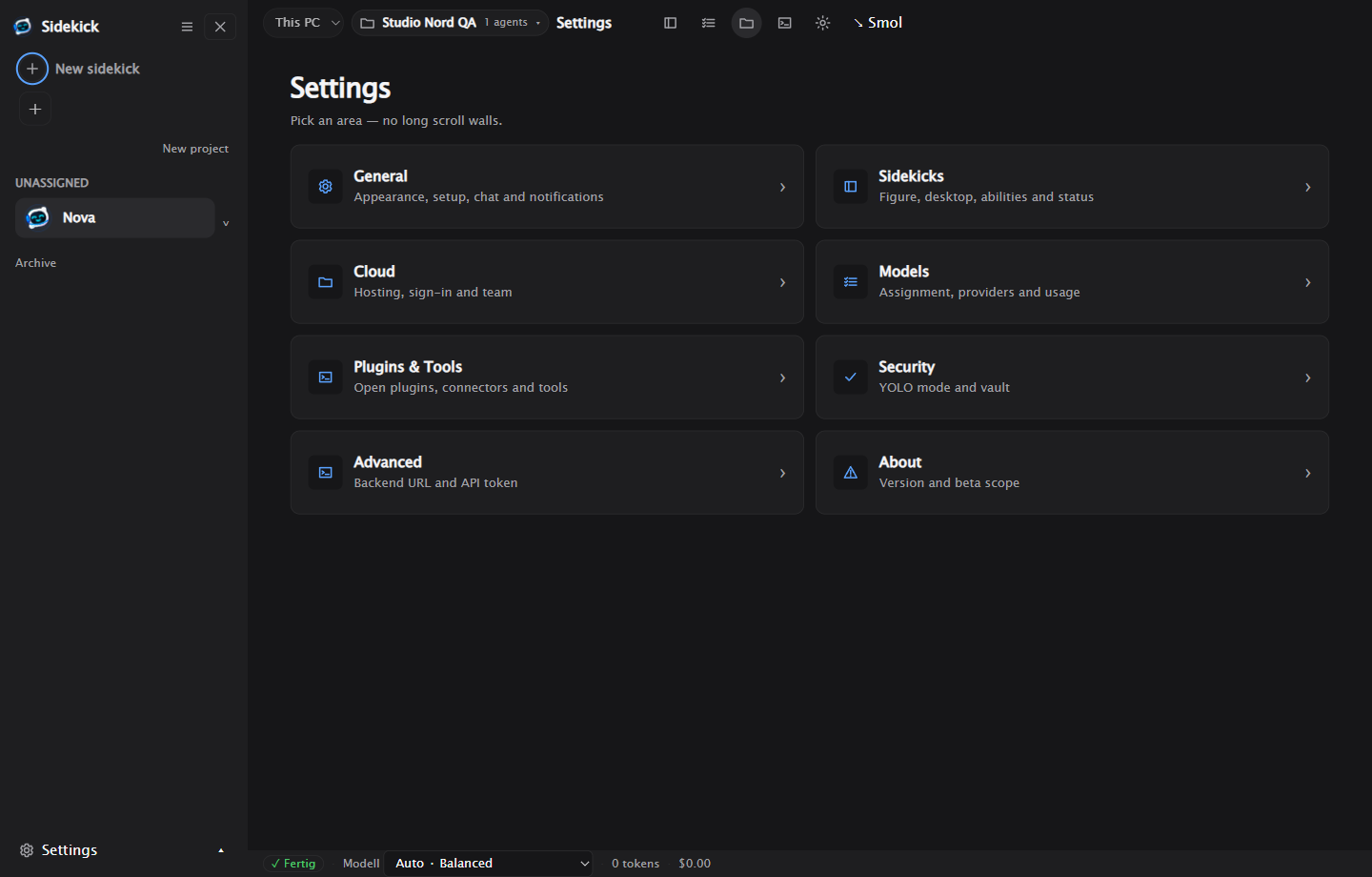
Settings
Model and provider